
Table of Contents
Introduction & BYOM Evolution
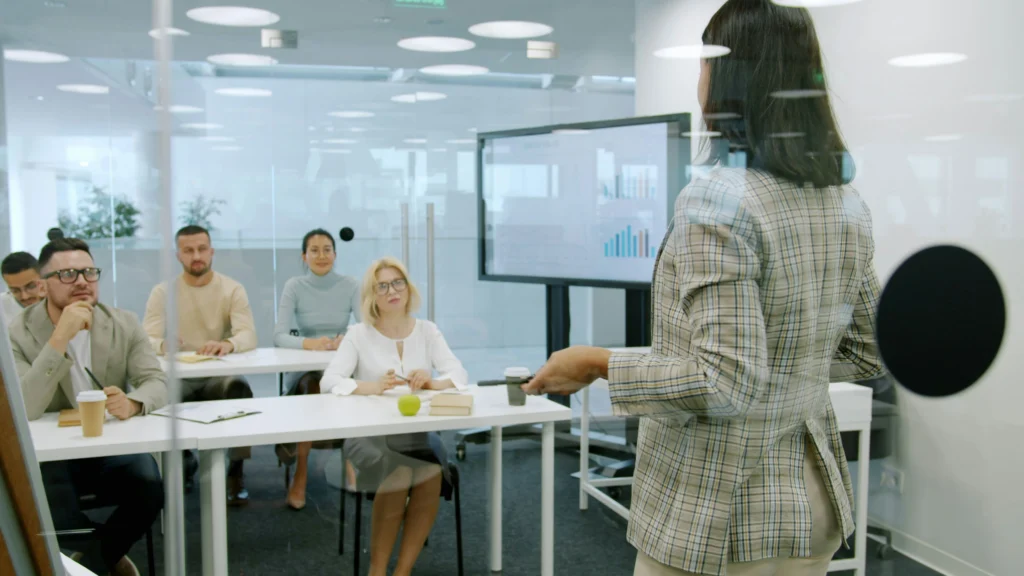
In modern classrooms, the shift toward flexible, technology-driven learning has brought BYOM Classroom AV Control to the forefront. Unlike traditional fixed AV systems, BYOM—short for “Bring Your Own Meeting” or “Bring Your Own Media”—empowers educators to seamlessly connect their personal devices to interactive displays, projectors, and classroom audio systems. This evolution allows for a more agile teaching environment where teachers are no longer constrained by a fixed set of hardware or a single classroom configuration.
The traditional AV setup in schools often relied on a static collection of projectors, microphones, speakers, and control panels. While functional, these systems posed several challenges: limited connectivity, high maintenance demands, and significant upfront costs. BYOM Classroom AV Control addresses these pain points by enabling standardized device compatibility, centralized management of AV signals, and real-time control from laptops, tablets, or mobile devices. For a more detailed look at the underlying hardware infrastructure, see our Smart Classroom Components article.
Beyond hardware, BYOM integrates network intelligence into classroom operations. Robust network design, including VLAN segmentation, QoS prioritization, and optimal bandwidth allocation, ensures that multiple devices can simultaneously stream video, display content, and transmit audio without latency or degradation. By connecting devices through either wired or wireless networks, BYOM enables a hybrid learning environment where remote participants experience the same quality of instruction as those in the classroom.
The evolution from traditional AV to BYOM has been largely driven by the need for flexibility in teaching. Educators often bring their own devices with preloaded content or custom software, which can enhance engagement and learning outcomes. This freedom, however, comes with the responsibility of ensuring network readiness, device compatibility, and teacher proficiency in using AV control interfaces. Schools that fail to address these factors often encounter delays, connectivity problems, or suboptimal audio-video quality during lessons.
Traditional AV vs BYOM Classroom AV Control
To illustrate why BYOM systems improve classroom flexibility, the following comparison highlights key parameters between traditional AV setups and BYOM Classroom AV Control:
| Feature | Traditional AV | BYOM Classroom AV Control |
|---|---|---|
| Connectivity Flexibility | Limited to installed devices | Supports multiple teacher/student devices, wireless and wired |
| Device Compatibility | Fixed hardware | Multi-device, cross-platform support |
| Maintenance Complexity | Moderate | Streamlined, centralized software updates |
| Scalability | Low | High, can integrate future displays, microphones, OPS modules |
Furthermore, BYOM’s rise aligns with the increasing prevalence of interactive displays, touch-enabled whiteboards, and smart projectors in classrooms. These tools complement BYOM systems by allowing teachers to present content from multiple sources, annotate in real time, and capture lessons for later review. Integrating these devices effectively requires planning, understanding display and projector types, and accounting for classroom size and layout—a topic explored further in our Interactive Display Guide.
By adopting BYOM Classroom AV Control, schools can transition toward a future-ready learning environment. The system’s flexibility supports varied teaching styles, hybrid class formats, and collaborative learning activities while reducing dependency on fixed hardware. For IT managers and procurement teams, understanding the evolution from traditional AV to BYOM is essential before committing to any hardware purchases or network upgrades.
Technical Architecture of BYOM
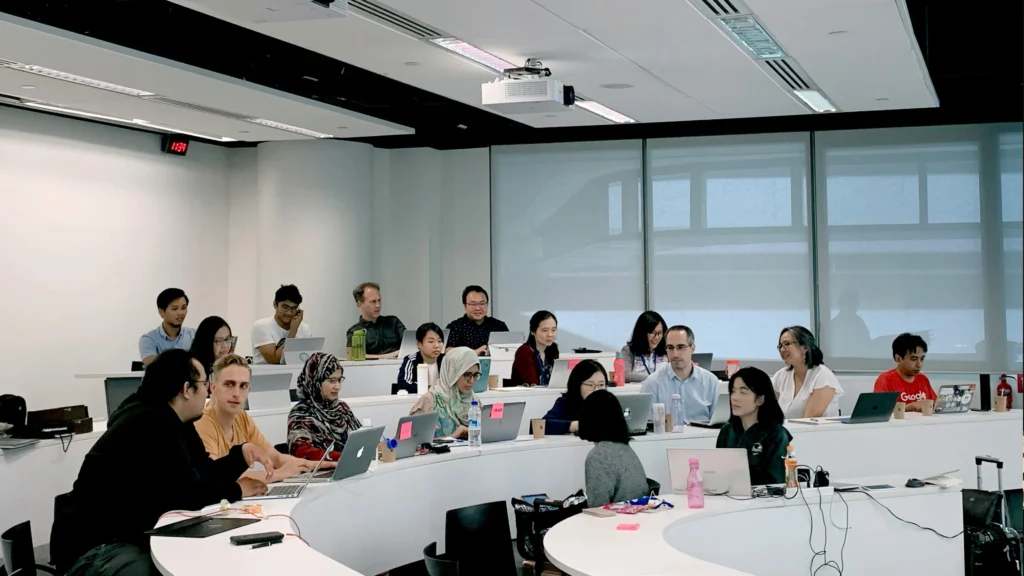
Core Hardware Components
The backbone of any BYOM Classroom AV Control system is its hardware. While traditional classrooms rely on fixed AV devices, BYOM integrates multiple hardware elements into a flexible ecosystem:
- Interactive Displays & Projectors: Touch-enabled displays, flat panels, and short-throw projectors provide visual content to students. Compatibility with multiple devices is essential.
- Audio Systems: Microphones, ceiling arrays, and speakers capture and distribute sound evenly across the classroom. Proper placement ensures clarity and avoids feedback loops.
- Control Modules: OPS (Open Pluggable Specification) or built-in Android units serve as the processing hubs, managing device inputs, annotations, and connectivity.
OPS vs Built-in Android Considerations
When selecting a control module for BYOM, schools often weigh:
- OPS Modules: European (EU) or Chinese (CN) standards; support larger resolutions; scalable for future upgrades.
- Built-in Android: Lower upfront cost, pre-installed software, simplified integration, but limited scalability.
- Recommendation: Procure OPS modules alongside interactive displays for long-term flexibility and maintenance ease.
→ OPS vs Built-in Android: What Powers Interactive Displays
Network Architecture
The network is critical in BYOM Classroom AV Control, especially when multiple devices connect simultaneously. Poor network planning can compromise audio-visual quality.
Key Considerations
- Bandwidth Allocation: Ensure sufficient throughput for video streaming, display mirroring, and audio capture.
- Latency Management: Prioritize AV traffic with VLANs or QoS settings to avoid lag.
- Wired vs Wireless: While Wi-Fi allows flexibility, wired connections often provide more stable performance for high-resolution displays.
Device Type & Network Requirements
For optimal BYOM performance, understanding bandwidth needs and network setup is crucial. The table below summarizes common classroom devices:
| Device Type | Bandwidth Requirement | Recommended Network Setup |
|---|---|---|
| Teacher Laptop/Tablet | 10–20 Mbps | Wired Ethernet preferred; Wi-Fi 6 for wireless |
| Student Laptops/Tablets | 5–15 Mbps | Separate VLAN for students to avoid congestion |
| Interactive Display | 20–30 Mbps | Dedicated wired connection or robust Wi-Fi AP nearby |
| Projector with OPS | 15–25 Mbps | Wired preferred; supports video streaming |
→ Classroom Network Setup: Tips for Stability
Audio System Integration
Audio integration in BYOM classrooms requires careful planning. Multiple microphones and speakers must work seamlessly with the network and displays.
Critical Points
- Microphone Arrays: Ceiling or tabletop arrays capture sound from all directions.
- Speakers: Placement should ensure even coverage and minimize echo.
- Feedback Prevention: Avoiding loops and hiss is essential; this is a frequent pain point in poorly designed classrooms.
Integration Workflow
In practice, BYOM Classroom AV Control orchestrates hardware and network resources:
- Teachers connect their device via HDMI, USB-C, or wireless casting.
- Control modules detect input, route it to displays and speakers, and manage annotations or media playback.
- Network routing ensures that remote students receive synchronized audio and video streams.
Classroom Implementation & Deployment Scenarios
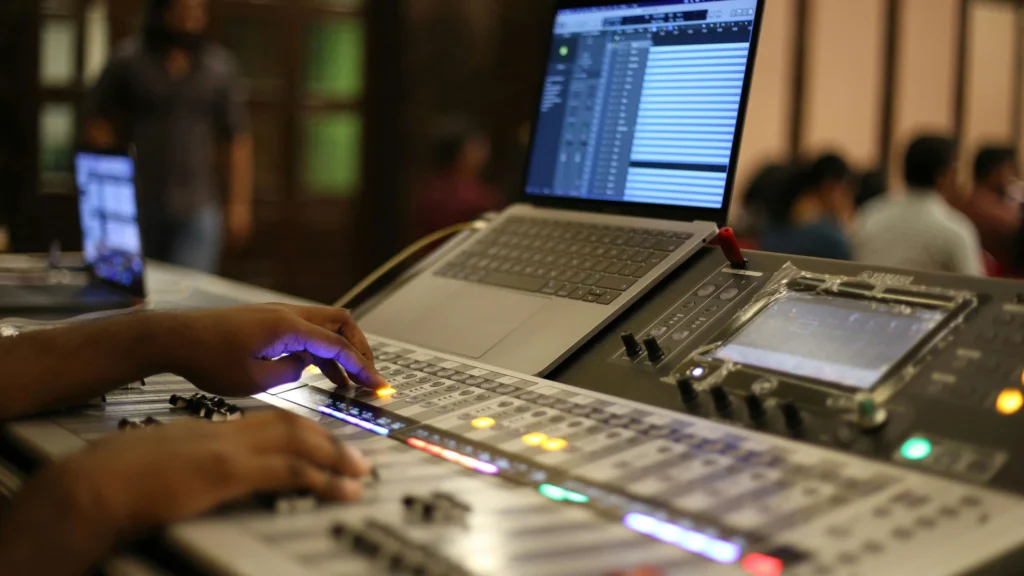
Room-Specific Deployment Considerations
Implementing BYOM Classroom AV Control effectively depends on classroom size and layout. Small classrooms benefit from compact interactive displays and short-throw projectors, ensuring students at the back can see and hear clearly. Medium classrooms may require multiple microphones or ceiling arrays to capture sound uniformly, while large lecture halls demand high-lumen projectors, OPS modules capable of multi-device handling, and strategically placed speakers to minimize echo and audio dropouts.
→ OPS vs Built-in Android: What Powers Interactive Displays
Device Placement and Connectivity
Proper placement of displays, projectors, and microphones is critical. BYOM systems rely on flexible connectivity, allowing teachers to plug in laptops or tablets via HDMI, USB-C, or cast wirelessly. However, careful planning is required to avoid cable clutter, maintain signal integrity, and ensure that all connected devices are accessible without disrupting teaching.
Practical Tips
- Position interactive displays at eye level for the majority of students.
- Ensure microphones are placed to cover the whole classroom but avoid direct feedback loops.
→ Audio Pickup in Classrooms: Microphones, Arrays, and Mistakes
Cable Management and Power Strategy
BYOM classrooms integrate multiple devices simultaneously, so neat cabling and reliable power distribution are essential. Overloaded circuits or tangled cables not only create safety hazards but also compromise performance. Schools should plan dedicated power lines for AV hardware and use structured cabling to maintain a clean and efficient setup.
Device Power & Cabling Tips
Proper power and cabling are critical for BYOM setups. This table provides guidance for common classroom devices:
| Device Type | Recommended Power Outlet | Cable Routing Tip |
|---|---|---|
| Interactive Display | Dedicated circuit, surge-protected | Use cable trunking along wall, avoid ceiling |
| Projector with OPS | Dedicated circuit | Ceiling conduit to projector mount |
| Microphone Arrays | Standard outlet, UPS optional | Ceiling-mounted cabling or concealed wall raceway |
| Teacher Laptop | Standard outlet | Desk-level power strips; avoid tangling with student devices |
→ Power and Cabling Best Practices for Smart Classrooms: Stability, Scalability, and Signal Integrity
Hybrid Learning and Remote Integration
In hybrid classrooms, BYOM systems ensure that remote learners experience synchronized audio and video. Network bandwidth must accommodate simultaneous streaming, and teachers need clear instructions for switching between local and remote AV feeds. With proper planning, BYOM supports annotation sharing, document collaboration, and multi-camera setups, all controlled from a single interface.
FAQ of BYOM Classroom AV Control
What devices are compatible with BYOM Classroom AV Control?
BYOM supports a wide range of laptops and tablets, but schools should maintain a list of approved devices and operating systems to ensure seamless connection to interactive displays, projectors, and audio systems.
How do I ensure smooth video conferencing in a BYOM classroom?
Reliable network bandwidth is critical. Prioritize AV traffic using VLANs or QoS settings, and ensure Wi-Fi coverage or wired connections meet minimum streaming requirements for multiple devices.
What common network issues affect BYOM performance?
Frequent problems include insufficient bandwidth, signal interference, and network latency. Poor cabling, unoptimized Wi-Fi placement, or overloaded access points can cause video lag, audio dropouts, and system instability.
How can teachers quickly troubleshoot audio or display problems in a BYOM setup?
Teachers should know basic troubleshooting: checking connections, restarting devices, verifying software updates, and contacting IT for complex issues. Structured training reduces downtime and frustration.
Should schools replace traditional AV systems entirely when adopting BYOM?
Not necessarily. Hybrid deployments often work best, keeping existing AV hardware while integrating BYOM software for flexibility. This approach minimizes costs and leverages existing infrastructure.
How does BYOM handle multiple instructors or simultaneous device connections?
BYOM systems with centralized management or software-based session control prevent conflicts when multiple teachers or devices connect, ensuring smooth operation during back-to-back lessons.
What audio considerations should schools keep in mind for BYOM classrooms?
Microphone placement, speaker coverage, and proper audio routing are essential. Incorrect setups can lead to echo, feedback, or uneven sound, impacting hybrid lessons.
How do software updates affect BYOM Classroom AV Control?
Updates can improve performance but may introduce compatibility issues. Schools should test updates in controlled environments before full deployment.