
Table of Contents
Understanding Interactive Displays
Definition and Core Concept
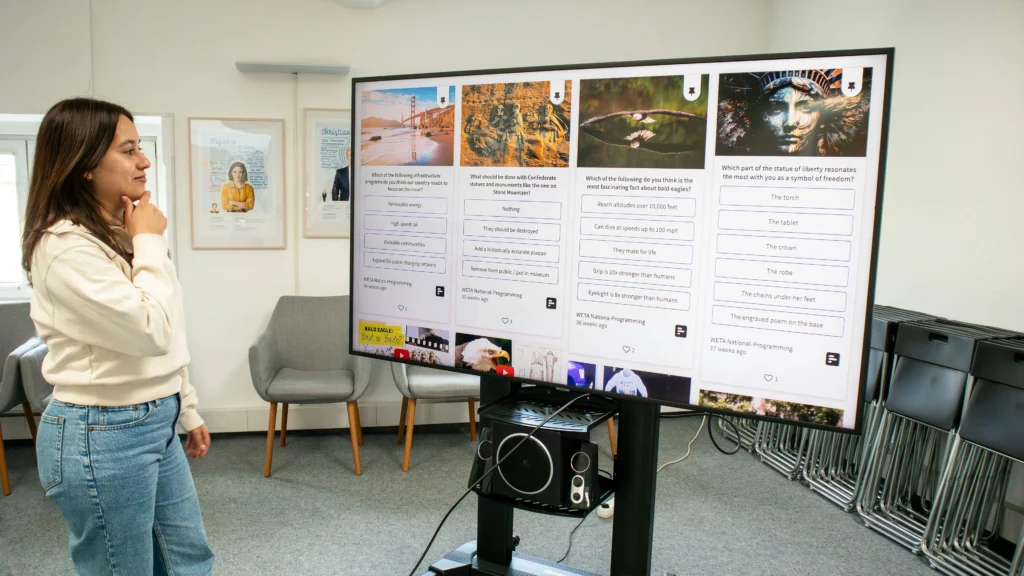
An interactive display—often referred to as a smart board or smart blackboard—is a large-format digital screen that allows users to directly interact with content using touch, stylus, or gesture input. Unlike a traditional projector or standard monitor, an interactive display does not simply show information; it responds to user input in real time.
At its core, an interactive display combines three systems into one device:
- A high-resolution display panel
- A multi-touch sensing layer
- An embedded computing system
This integration transforms the screen from a passive output device into an active collaboration surface. Teachers can write directly on lesson materials, students can manipulate diagrams, and meeting participants can annotate shared documents without needing external whiteboards or paper.
For educators and school administrators trying to understand modern classroom technology, this distinction is essential: an interactive display is not just a “bigger screen.” It is a computing platform and collaboration tool built into a display surface.
Key Structural Components of an Interactive Display
To make informed purchasing or deployment decisions, it is important to understand what is physically and technically inside a smart blackboard.
1. Display Panel Layer
Most modern interactive displays use LCD or LED panels, typically ranging from 65 to 86 inches for classrooms. Higher-end models may use advanced LED or OLED technologies for better brightness and contrast.
Key parameters procurement teams should evaluate include:
- Resolution (Full HD vs 4K)
- Brightness (measured in nits)
- Anti-glare coating
- Viewing angle consistency
In educational environments with strong ambient light, brightness and anti-glare performance are often more critical than raw resolution.
2. Touch and Sensor Layer

This is what differentiates an interactive display from a standard monitor.
Several technologies are commonly used:
- Infrared (IR) touch grids – Detect interruption of invisible light beams across the screen surface.
- Capacitive touch – Similar to smartphones, detects electrical changes from human contact.
- Optical or camera-based touch – Uses embedded cameras to detect input.
- Electromagnetic pen systems – Enable highly precise stylus writing.
For schools, infrared touch is widely adopted because it supports multi-touch interaction and works with fingers, gloves, or passive styluses.
Key performance indicators include:
- Number of simultaneous touch points
- Writing latency
- Palm rejection capability
- Durability of the touch surface
3. Embedded Computing System
Most interactive displays are not “dumb screens.” They contain internal processors that run operating systems such as Android. Some models support OPS (Open Pluggable Specification) modules, allowing schools to insert a Windows PC inside the display.
This dual-structure design offers flexibility:
- Built-in Android for lightweight teaching tools
- OPS Windows module for full desktop applications
From a procurement perspective, this determines whether the device can run existing school software natively or requires external laptops.
4. Connectivity and Interface Ports
Interactive displays function as central hubs. Standard interfaces include:
- HDMI for external computers
- USB for touch signal transmission
- Ethernet for network connectivity
- Wi-Fi and Bluetooth for wireless sharing
Understanding connectivity is critical for IT managers planning integration with existing classroom infrastructure.
Core Functional Capabilities
Beyond structure, decision-makers need clarity on what an interactive display actually enables.
Real-Time Annotation
Teachers can write over presentations, pause videos to explain concepts, or draw directly onto digital textbooks. Annotations can usually be saved, exported, or shared with students.
Multi-User Collaboration
Modern displays allow multiple students to write simultaneously. This encourages group participation and interactive learning rather than lecture-only instruction.
Wireless Screen Sharing
Students or teachers can cast content from laptops or tablets directly to the screen. In some systems, multiple devices can display content side-by-side.
Built-in Teaching Software
Many smart blackboards include:
- Digital whiteboard applications
- Lesson templates
- Screen recording tools
- QR code sharing for distributing notes
These built-in tools reduce dependency on third-party software.
How Interactive Displays Differ from Traditional Projectors or TVs

For school leaders comparing solutions, the differences are structural and functional:
| Feature | Interactive Display | Traditional Projector | Standard TV/Monitor |
|---|---|---|---|
| Touch Input | Yes | Usually requires external device | No |
| Built-in OS | Often included | No | Limited |
| Brightness Consistency | Stable | Affected by ambient light | Stable |
| Maintenance | Low | Lamp replacement needed | Low |
| Collaboration | Multi-user | Limited | None |
Interactive displays are self-contained systems, whereas projectors rely on multiple external components.
Types and Structure of Modern Interactive Displays
Understanding interactive displays requires more than knowing that they are “large touchscreens.” For educators and procurement engineers, it is essential to distinguish between product types, internal architecture, and functional depth. The structure determines performance, lifespan, and long-term return on investment.
Main Types of Interactive Displays in Education
Different environments require different display architectures. While most classrooms adopt standardized flat panels, there are variations worth understanding.
All-in-One Interactive Flat Panels (IFP)
The all-in-one interactive flat panel is currently the dominant format in K–12 education. It integrates a 4K LCD screen, touch technology, embedded Android OS, speakers, and optional OPS Windows modules into a single device.
Because the computing system is built directly into the display, installation is straightforward and cable management is minimal. This makes it highly suitable for large-scale school deployments where consistency and maintenance efficiency matter.
Modular LED Interactive Displays
Modular LED systems are typically used in large lecture halls or flagship campuses. Unlike LCD panels with fixed dimensions, LED displays can be assembled into custom sizes, delivering higher brightness and visual impact.
However, their installation complexity and higher cost make them less practical for standard classrooms. They are more common in auditoriums or multi-purpose halls than in everyday teaching spaces.
Legacy Interactive Whiteboard Systems
Older systems combining projectors and sensor-based whiteboards still exist in some institutions. These solutions rely heavily on projection quality and frequent calibration.
Over time, brightness degradation and maintenance costs often outweigh the initial savings, which is why many schools are transitioning toward integrated flat panel solutions.
Structural Composition of a Smart Interactive Board
A modern interactive display is built around several tightly integrated layers. Understanding these layers helps procurement teams compare products beyond surface specifications.
Display Panel Technology
The display panel determines visual clarity and durability. Most education-focused interactive displays use IPS or VA LCD panels with 4K resolution as a baseline.
Brightness levels typically range between 350 and 500 nits to ensure visibility under classroom lighting. Anti-glare tempered glass protects the panel while reducing reflections and improving writing comfort.
Touch Detection System
Touch technology defines how users interact with the screen. Infrared (IR) touch is the most common solution in education because it is stable, cost-effective, and supports multi-touch interaction.
Capacitive touch provides higher precision but increases cost. In school environments, durability and reliability usually take priority over ultra-fine accuracy.
Embedded Operating System and Expandability
Most interactive flat panels operate on an embedded Android motherboard. This system handles whiteboard software, wireless sharing, and core applications without requiring an external PC.
For more demanding tasks, a Windows OPS module can be inserted directly into the display. This modular design allows performance upgrades without replacing the entire device, extending lifecycle value.
Integrated Audio and Camera Components
Modern interactive displays increasingly integrate front-facing speakers, microphone arrays, and built-in cameras. These components support recording, remote collaboration, and hybrid teaching.
Instead of functioning solely as a display surface, the device becomes a communication hub capable of supporting both in-person and remote interaction.
Core Functional Capabilities of Interactive Displays
Beyond hardware structure, the true value of an interactive display lies in its functional ecosystem.
Digital Writing and Annotation
Interactive displays allow teachers to write directly on digital content with multiple touch points. Handwriting can be saved, edited, or converted into digital text depending on software capabilities.
Advanced systems support shape recognition, handwriting-to-text conversion, and gesture-based erasing, enhancing efficiency during live instruction.
Wireless Screen Sharing
Modern devices support wireless screen mirroring from laptops, tablets, and smartphones. This eliminates cable clutter and allows multiple participants to present content seamlessly.
In some systems, several screens can be displayed simultaneously, encouraging collaborative problem-solving and group discussions.
Cloud Connectivity and Data Management
Cloud integration enables teachers to save lesson materials directly to online storage platforms. This reduces dependency on USB drives and prevents data loss.
Synchronization across devices ensures that annotations and lesson notes remain accessible even after the session ends.
Deployment Considerations at the Device Level
While deployment is not the primary focus of this article, certain structural factors influence installation decisions.
Mounting options typically include wall-mounted brackets or mobile stands, depending on room flexibility requirements. Power supply stability and wired network connections are generally preferred for reliable performance.
From a procurement perspective, long-term maintenance support, panel lifespan, and upgrade flexibility should be evaluated alongside technical specifications.
Transition: From Interactive Display to Smart Classroom
Once the structure, technology, and functional layers of an interactive display are clearly understood, it becomes easier to see its strategic role. The device itself is not a “smart classroom,” but it serves as the interactive core within one.
To explore how interactive displays integrate into a broader digital learning ecosystem, including management systems and instructional workflows, you can refer to What Is a Smart Classroom? A Practical Explanation.
How to Evaluate an Interactive Display Before Purchase
Choosing an interactive display is not just about screen size or price. For schools and institutions, the evaluation process should focus on long-term reliability, expandability, and real teaching usability. A well-structured assessment framework can prevent costly mistakes and reduce future replacement cycles.
Below are the key dimensions decision-makers should carefully examine.
Evaluate the Display Panel Quality First
The display panel is the most expensive and most critical component of the device. Its quality directly affects lifespan, visual comfort, and daily user experience.
Resolution should be 4K as a baseline standard for modern classrooms. However, resolution alone is not enough. Brightness levels between 350 and 500 nits ensure readability under standard lighting conditions, while anti-glare coating reduces reflection and eye fatigue during prolonged use.
It is also important to confirm panel grade and warranty terms. A longer panel warranty often signals manufacturer confidence in product durability.
Assess Touch Stability and Writing Experience
Touch response quality is central to classroom usability. An interactive display must provide smooth writing, minimal latency, and accurate multi-touch detection.
Infrared touch systems are common in education because of their robustness. During evaluation, testers should write continuously across the screen, use multiple fingers simultaneously, and check edge accuracy. Poor edge detection or noticeable lag can significantly impact teaching flow.
Consistency is more important than marketing claims about maximum touch points.
Review System Architecture and Upgrade Flexibility
An interactive display should not be treated as a sealed appliance. Its internal system design determines whether it can evolve with future needs.
Most modern panels include an embedded Android system for daily use. Schools should verify Android version, CPU performance, RAM capacity, and internal storage to ensure smooth operation over several years.
Equally important is support for OPS (Open Pluggable Specification) Windows modules. A modular architecture allows performance upgrades without replacing the entire display, protecting long-term investment.
Examine Software Ecosystem and Compatibility
Hardware alone does not define value. The pre-installed whiteboard software, wireless casting tools, and system management platform shape the overall experience.
During evaluation, schools should test how quickly users can access writing tools, switch inputs, and share screens wirelessly. Compatibility with common platforms such as Windows, macOS, and student mobile devices should be verified in real conditions rather than assumed.
If centralized device management is required, remote control and firmware update capabilities should also be reviewed.
Analyze Audio-Visual Integration
Built-in speakers, microphones, and cameras are no longer optional features in many institutions. Hybrid learning models require reliable audio pickup and clear video capture.
Instead of relying on specification sheets alone, evaluators should test real voice clarity from different positions in the room. Echo cancellation and noise reduction capabilities are especially important in larger spaces.
A well-integrated audio-visual system reduces the need for external peripherals and simplifies installation.
Consider Installation and Infrastructure Requirements
While installation may appear straightforward, hidden infrastructure costs can affect total budget planning.
Wall strength, electrical capacity, and network stability must be assessed before procurement. Wired network connections are generally preferred for stability, particularly in high-density campus environments.
Cable management, mounting flexibility, and ventilation space should also be reviewed to ensure safe and long-term operation.
Evaluate Manufacturer Support and Service Model
Even high-quality hardware can encounter technical issues. Service responsiveness and spare part availability are therefore critical.
Procurement teams should examine warranty duration, on-site service options, and local technical support capacity. Clear service-level agreements reduce uncertainty and downtime risk.
A lower upfront price may not translate into lower total cost of ownership if after-sales service is weak.
Compare Total Cost of Ownership (TCO), Not Just Unit Price
Focusing only on purchase price can lead to short-term decisions. A comprehensive evaluation should consider lifecycle cost.
This includes expected lifespan, energy consumption, maintenance frequency, upgrade flexibility, and software licensing requirements. A slightly higher initial investment often results in lower long-term operational costs.
Schools planning multi-year deployments should model at least a 5-year usage cycle when calculating return on investment.
Final Evaluation Perspective
Before making a final decision, institutions should conduct hands-on testing whenever possible. Real classroom simulations reveal more about usability than brochures or technical sheets.
An interactive display is not simply a digital board. It is a long-term instructional infrastructure investment. Evaluating it through the lenses of performance stability, expandability, service reliability, and lifecycle cost ensures that the device supports educational goals rather than becoming a short-lived hardware expense.
Key Technical Specifications Explained
Technical specifications can often feel overwhelming. Datasheets are filled with numbers, abbreviations, and marketing claims, yet not all parameters carry equal importance.
Understanding what each specification actually means helps decision-makers separate meaningful performance indicators from surface-level metrics.
Below are the most critical specifications to evaluate when purchasing an interactive display.
| Specification | Recommended Standard | Why It Matters |
|---|---|---|
| Resolution | 4K (3840×2160) | Clear text and diagrams, readable from back row |
| Brightness | 350–500 nits | Visibility under classroom lighting |
| Touch Points | 10–20 simultaneous | Smooth handwriting, multi-user collaboration |
Resolution – Why 4K Is the Baseline Standard
Resolution refers to the number of pixels displayed on the screen. Most modern interactive displays use 3840 × 2160 pixels, commonly known as 4K.
Higher resolution ensures sharper text, clearer diagrams, and better readability from the back of the classroom. In education settings where detailed content such as charts or mathematical formulas is common, lower resolutions may reduce clarity.
For new deployments, 4K should be considered the minimum standard rather than a premium feature.
Screen Size – Matching Display to Room Dimensions
Screen size directly affects visibility and engagement. Common sizes range from 65 to 86 inches for standard classrooms.
Choosing the right size depends on viewing distance. If students in the back row struggle to read small text, the screen is likely undersized. However, excessively large displays in small rooms may create visual strain.
A balanced match between room size and display dimension is more important than simply choosing the largest option available.
Brightness (Nits) – Ensuring Clear Visibility
Brightness is measured in nits and determines how well the screen performs under ambient lighting conditions.
Most education-focused interactive displays offer brightness levels between 350 and 500 nits. This range is generally sufficient for classrooms with standard indoor lighting.
Lower brightness may cause washed-out visuals, especially in rooms with natural daylight. However, extremely high brightness is not always necessary and may increase power consumption.
Contrast Ratio – Depth and Visual Clarity
Contrast ratio indicates the difference between the darkest blacks and the brightest whites a display can produce.
A higher contrast ratio improves text sharpness and enhances visual depth. This becomes particularly noticeable when displaying multimedia content or dark-background materials.
While manufacturers often promote very high contrast numbers, real-world viewing performance is more important than theoretical peak values.
Touch Points and Response Time
Touch points refer to how many simultaneous inputs the screen can detect. Many interactive displays support 20 to 40 touch points.
In practical classroom use, extremely high touch counts are rarely necessary. More important is touch accuracy and response speed. Low latency ensures smooth writing and natural pen movement.
Procurement teams should test actual writing performance rather than relying solely on touch point numbers.
RAM and Storage – System Performance Over Time
The embedded Android system inside an interactive display includes RAM and internal storage, similar to a tablet or computer.
Higher RAM capacity allows smoother multitasking and faster application switching. Sufficient internal storage ensures that teaching materials and applications can be saved without performance degradation.
When evaluating specifications, schools should consider future software updates and usage growth rather than only immediate needs.
CPU and Processing Power
The processor determines how efficiently the system handles applications, whiteboard functions, and wireless casting.
While exact CPU models vary by manufacturer, multi-core processors with stable performance are preferable. An underpowered processor may result in lag, especially when running multiple applications simultaneously.
Processing power directly impacts long-term usability.
OPS Compatibility – Future Upgrade Capability
OPS (Open Pluggable Specification) slots allow users to insert a Windows computing module into the display.
This modular architecture is critical for long-term investment protection. Instead of replacing the entire display when computing requirements increase, schools can upgrade only the OPS module.
Ensuring standard OPS compatibility provides flexibility and reduces total lifecycle cost.
Audio Output and Microphone Quality
Built-in speaker power is usually measured in watts. Higher wattage generally delivers clearer sound for larger rooms.
However, sound clarity depends not only on power but also on speaker placement and tuning. For hybrid teaching, microphone array quality and noise reduction capability are equally important.
Testing audio performance in a real environment is more reliable than comparing watt numbers alone.
Connectivity Ports and Expansion Options
Connectivity determines how easily the display integrates into existing infrastructure.
Common ports include HDMI, USB, LAN, and audio outputs. Front-facing USB ports simplify quick connections, while LAN ports ensure stable wired networking.
Procurement teams should verify that the available ports align with their institution’s device ecosystem.
Panel Lifespan and Warranty Terms
Panel lifespan is typically measured in hours of operation. Education environments often require daily usage over many years.
Warranty coverage for the panel itself is particularly important, as it is the most expensive component to replace. Longer warranty periods reduce financial risk and signal product reliability.
Total support structure should be evaluated alongside technical specifications.
Understanding Specifications in Context
Technical numbers are meaningful only when interpreted within real-world use cases. A slightly higher brightness rating or additional touch points may not significantly improve teaching outcomes, but system stability and upgrade flexibility often will.
When reviewing specification sheets, decision-makers should focus on performance consistency, expandability, and long-term durability rather than marketing-driven peak values.
An interactive display is an infrastructure investment. Understanding its technical specifications clearly ensures that procurement decisions support sustainable educational development rather than short-term hardware trends.
Interactive Display Pricing: What Really Affects Cost
Interactive display pricing can vary significantly, even among products that appear similar in size and resolution. Two 75-inch 4K panels may look nearly identical, yet their prices can differ by a large margin.
To understand why, it is necessary to examine the underlying cost drivers rather than focusing only on screen dimensions.
Below are the main factors that influence pricing.
Display Panel Grade and Manufacturing Quality
The display panel itself represents one of the largest cost components. Higher-grade LCD panels provide better color consistency, longer lifespan, and improved brightness stability over time.
Panels sourced from top-tier manufacturers typically undergo stricter quality control. Lower-cost alternatives may reduce upfront expense but increase the risk of uneven brightness, color shift, or earlier degradation.
Panel quality directly influences long-term reliability, making it a major pricing determinant.
Touch Technology and Frame Precision
The type and calibration accuracy of the touch system significantly affect cost. Infrared touch solutions vary in sensor density, edge accuracy, and durability.
Higher-quality touch frames provide more stable multi-touch performance and lower latency. Cheaper implementations may experience ghost touches or inconsistent edge detection.
Because writing smoothness is central to teaching, touch system precision often justifies pricing differences.
Embedded System Configuration
The internal computing architecture also impacts pricing. Android motherboard specifications such as CPU model, RAM capacity, and storage size influence performance.
Higher-performance chipsets and larger memory configurations increase cost but extend usable lifespan. Displays designed for long-term institutional use typically feature stronger hardware to support software updates over several years.
System configuration is a key distinction between entry-level and professional-grade products.
OPS Compatibility and Expandability
Support for OPS (Open Pluggable Specification) modules adds flexibility but also increases manufacturing cost.
Displays with certified OPS slots allow schools to upgrade Windows computing power without replacing the entire unit. Lower-priced models may omit this feature, limiting future expandability.
Institutions planning multi-year deployments should evaluate whether upfront savings justify reduced upgrade potential.
Audio-Visual Integration Level
Built-in speaker systems, microphone arrays, and integrated cameras contribute to total pricing.
Higher wattage speakers with optimized acoustic design improve sound coverage in larger classrooms. Integrated 4K cameras and AI-based noise reduction systems increase manufacturing complexity.
While these features may not be essential in every scenario, they reduce the need for external equipment and simplify installation.
Glass Protection and Surface Treatment
Protective glass and anti-glare coatings also influence cost. High-strength tempered glass improves durability and safety, particularly in high-traffic school environments.
Advanced anti-reflection coatings enhance visibility under strong lighting conditions. These refinements increase manufacturing expense but improve user comfort and product longevity.
Surface engineering is often overlooked in pricing discussions, yet it directly affects daily usability.
Software Ecosystem and Licensing
Some interactive displays include proprietary whiteboard software, wireless casting tools, and centralized management platforms.
Developing and maintaining software ecosystems requires continuous investment. Products bundled with robust software support may carry higher pricing but deliver better integration and long-term usability.
In contrast, lower-cost hardware may rely on basic or third-party applications with limited update support.
Manufacturing Standards and Certification
Compliance with international certifications such as energy efficiency, safety, and electromagnetic compatibility adds production costs.
Displays intended for institutional procurement often meet stricter regulatory standards. Certification ensures safety and reliability but increases overall manufacturing expenses.
For public tenders or government projects, certification requirements can significantly influence pricing.
After-Sales Service and Warranty Coverage
Warranty length and service structure are often embedded into product pricing.
Longer warranty periods, on-site support, and spare part availability reduce operational risk for schools. However, these service commitments require manufacturers to allocate additional resources.
A lower purchase price may result in higher maintenance costs if service infrastructure is weak.
Supply Chain and Brand Positioning
Pricing is also affected by brand positioning and supply chain structure.
Manufacturers with established global supply networks and quality control systems often maintain more consistent pricing but provide stronger long-term support. Emerging brands may offer aggressive pricing strategies to gain market share.
Understanding brand strategy helps buyers interpret cost differences more accurately.
Price vs. Value: A Strategic Perspective
Interactive display pricing should not be evaluated in isolation. The true comparison lies in total cost of ownership over a projected 5–7 year lifecycle.
Upfront savings may seem attractive, but limited expandability, shorter lifespan, or weak after-sales support can increase overall expenditure. Conversely, a slightly higher initial investment may provide greater stability and upgrade flexibility.
For schools and institutions, pricing decisions should balance budget constraints with long-term educational infrastructure planning.
Common Procurement Mistakes Schools Make When Buying Interactive Displays
Purchasing an interactive display is often part of a larger digital transformation plan. However, many schools unintentionally make avoidable mistakes during the procurement process.
These errors usually do not stem from lack of budget, but from incomplete evaluation frameworks or overreliance on surface-level specifications.
Understanding common pitfalls can significantly improve long-term outcomes.
Focusing Only on Price Instead of Lifecycle Cost
One of the most frequent mistakes is selecting the lowest bidder without evaluating total cost of ownership.
An interactive display is expected to operate daily for five to seven years. Lower upfront pricing may result in shorter lifespan, limited upgrade options, or higher maintenance frequency.
Procurement decisions should include warranty terms, spare part availability, and system upgrade flexibility, not just unit price.
Overemphasizing Screen Size While Ignoring Panel Quality
Many purchasing decisions prioritize screen size as the main comparison factor.
However, two displays of the same size may differ significantly in brightness stability, color consistency, and durability. A larger but lower-quality panel may deliver inferior long-term performance compared to a slightly smaller, higher-grade unit.
Panel grade and warranty coverage often matter more than incremental size differences.
Misinterpreting Touch Point Specifications
Manufacturers frequently advertise high multi-touch numbers, such as 40 or even 50 touch points.
In real classroom scenarios, extremely high touch counts are rarely required. What matters more is writing accuracy, response speed, and edge calibration stability.
Schools that rely solely on advertised touch point numbers may overlook actual usability performance.
Ignoring System Performance and Memory Configuration
The embedded Android system inside an interactive display determines how smoothly applications run.
Insufficient RAM or outdated processors can lead to lag over time, especially after software updates. While initial demonstrations may appear responsive, long-term performance depends heavily on internal configuration.
Evaluating CPU capability and memory capacity helps avoid premature obsolescence.
Overlooking Upgrade Flexibility
Some schools purchase displays without considering future expansion.
Models without OPS (Open Pluggable Specification) support limit the ability to upgrade computing power. When requirements evolve, the entire unit may need replacement instead of a simple module upgrade.
Lack of modularity can significantly increase long-term infrastructure costs.
Neglecting Network and Infrastructure Planning
Interactive displays rely on stable power supply and network connectivity.
Procurement decisions sometimes proceed before assessing classroom electrical capacity or wired network availability. This can lead to additional installation costs or unstable performance after deployment.
Infrastructure readiness should be evaluated alongside product selection.
Underestimating the Importance of After-Sales Service
Even reliable hardware requires occasional maintenance.
Some institutions focus heavily on product specifications but fail to examine local service coverage, spare part lead times, or warranty response commitments.
Weak after-sales support can result in prolonged downtime, disrupting teaching schedules.
Purchasing Without Hands-On Testing
Relying solely on brochures or online comparisons is another common error.
Live demonstrations allow teachers and IT staff to test writing smoothness, screen clarity, and interface usability. Practical interaction often reveals differences that specification sheets do not show.
Hands-on evaluation reduces the risk of post-installation dissatisfaction.
Treating the Interactive Display as a Short-Term Device
Some procurement strategies treat interactive displays as simple presentation tools rather than long-term instructional infrastructure.
This mindset often leads to underinvestment in quality and expandability. In reality, the interactive display becomes a central digital platform within the classroom.
Viewing it as infrastructure rather than equipment helps guide more strategic decisions.
A More Strategic Procurement Approach
Avoiding these mistakes requires shifting from price-driven selection to value-driven evaluation. Decision-makers should assess durability, upgrade capability, service reliability, and lifecycle cost in parallel.
An interactive display represents a multi-year investment in teaching technology. Structured evaluation, hands-on testing, and long-term planning ensure that procurement decisions support sustainable educational development.
Interactive Display FAQ
Below are some of the most frequently asked questions about interactive displays in education environments. These answers are designed to clarify common doubts for school administrators, IT managers, and procurement teams.
What is an interactive display?
An interactive display is a large-format touchscreen device that combines a high-resolution screen, touch detection technology, and an embedded computing system.
It allows users to write, annotate, present, and interact directly with digital content without the need for external whiteboards or traditional projectors.
Is an interactive display the same as a smart board?
The terms are often used interchangeably, but technically they are not identical.
A traditional smart board usually refers to a projector-based interactive whiteboard system, while a modern interactive display is an all-in-one flat panel with built-in computing and touch functionality.
Do interactive displays require a computer?
Most modern interactive displays include an embedded Android system, which allows them to function independently for whiteboarding and presentations.
However, for advanced applications or Windows-based software, an OPS module or external computer can be connected.
What screen size is best for a classroom?
For standard classrooms, sizes between 65 and 86 inches are most common.
The ideal size depends on room depth and student viewing distance. A properly sized display ensures text readability from the back row without causing visual strain.
How long does an interactive display typically last?
Most professional-grade interactive displays are designed for 5 to 7 years of daily institutional use.
Panel lifespan is typically measured in operating hours, and durability depends on panel quality, usage intensity, and maintenance practices.
What is the difference between infrared and capacitive touch?
Infrared (IR) touch systems use sensor grids around the screen frame and are widely adopted in education due to stability and cost efficiency.
Capacitive touch offers higher precision and smoother response but usually comes at a higher cost. In classrooms, durability often matters more than ultra-high precision.
Can students connect their devices wirelessly?
Yes, most interactive displays support wireless screen sharing from laptops, tablets, or smartphones.
Compatibility may vary depending on operating systems and casting protocols, so institutions should verify cross-platform support during evaluation.
Does brightness matter in classroom environments?
Brightness affects visibility under ambient lighting.
Displays with 350–500 nits are generally suitable for classrooms. Insufficient brightness may result in washed-out images, especially in rooms with natural daylight.
Is OPS support important?
OPS (Open Pluggable Specification) compatibility allows users to insert a Windows computing module into the display.
This modular design enables future performance upgrades without replacing the entire unit, making it valuable for long-term institutional planning.
Are interactive displays difficult to install?
Compared to projector-based systems, modern all-in-one panels are relatively straightforward to install.
They typically require secure wall mounting, stable power supply, and network connectivity. Proper infrastructure planning ensures safe and efficient deployment.
What affects the price of an interactive display?
Pricing is influenced by panel quality, touch technology, system configuration, audio-visual integration, warranty coverage, and brand positioning.
Two displays with identical size and resolution may vary in price due to differences in internal components and long-term service support.
Are interactive displays suitable for hybrid learning?
Yes. Many modern models include built-in cameras, microphone arrays, and speakers, supporting recording and remote participation.
When properly configured, they can function as both in-room teaching tools and remote collaboration hubs.
Conclusion
Interactive displays have become a cornerstone of modern educational environments, bridging the gap between traditional teaching methods and digital interactivity. By understanding their core components, touch technologies, system integration, and deployment considerations, educators and administrators can make informed decisions that maximize student engagement and classroom efficiency.
Choosing the right display involves evaluating size, touch type, computing capability, network compatibility, and future scalability. Integration with lecture capture, hybrid learning setups, and AV control systems ensures that a single device can serve multiple pedagogical functions.
Ultimately, a well-planned interactive display deployment is not just a hardware purchase—it’s a strategic investment in the teaching ecosystem. When paired with proper training, infrastructure, and support, interactive displays enhance lesson delivery, foster collaboration, and provide a flexible foundation for future classroom innovations.
This understanding also ties directly back to previous discussions in “What Is a Smart Classroom? A Practical Explanation,” “Smart Classroom Components: Complete Guide to AV, Control & Infrastructure Systems,” and “Smart Classroom vs Smart Conference Room: Deployment Tips and Best Practices,” creating a coherent knowledge path for technology deployment in educational spaces.