Table of Contents
Introduction to Digital Podium AV Integration
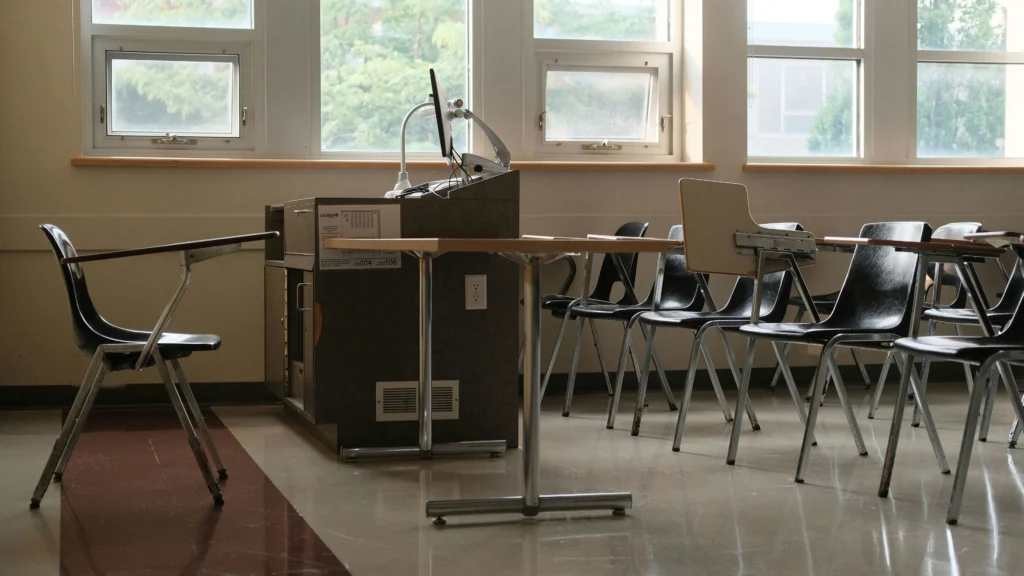
Modern classrooms are increasingly adopting digital podiums to enhance teaching and streamline control over AV systems. Digital podiums are central hubs that allow teachers to manage projectors, interactive displays, microphones, and even networked learning tools from a single interface. However, without proper Digital Podium AV Integration, classrooms often face technical issues that hinder both teaching efficiency and student engagement.
What is a Digital Podium?
A digital podium is more than just a lectern. It combines hardware and software features that allow teachers to:
- Control AV devices such as projectors, interactive displays, and classroom speakers.
- Connect to local networks for hybrid teaching or recording lessons.
- Operate software applications directly from the podium for lesson delivery.
These podiums typically include ports for HDMI, USB, audio inputs, and sometimes OPS slots for integrated computing. Integrating these devices properly is critical to avoid disruptions during class.
Why Integration Matters in Modern Classrooms
Without seamless integration, digital podiums can create problems such as:
- Audio delays or feedback that interfere with hybrid teaching.
- Flickering or signal loss on interactive displays.
- Network congestion when multiple podium functions are active simultaneously.
Proper Digital Podium AV Integration ensures:
- Smooth transitions between teaching modes.
- Minimal downtime during lectures.
- Optimized classroom AV performance.
Common Challenges Without Proper Integration
Classrooms often face these recurring issues:
- Incorrect wiring between podium and AV devices, causing intermittent display or audio failures.
- Software mismatches, including outdated drivers or incompatible AV control software.
- Power fluctuations, which can cause podiums or displays to reboot unexpectedly.
These challenges underscore the importance of planning and structured integration rather than ad hoc setups.
Understanding AV Systems in Smart Classrooms
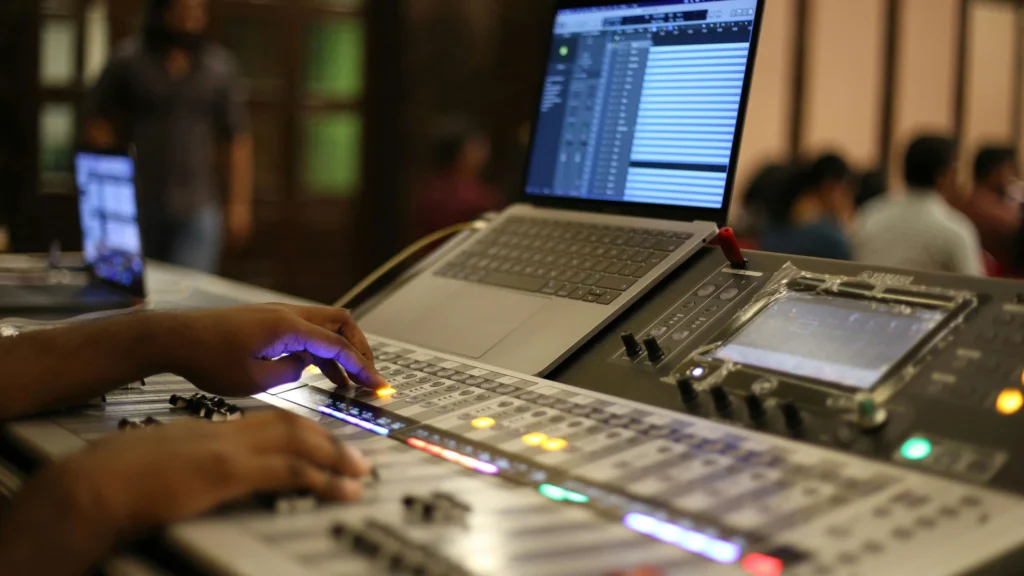
A classroom AV system is composed of several interdependent components. Proper integration requires understanding how each system interacts with the digital podium.
Overview of Typical Classroom AV Components
Key components include:
- Projectors: Short-throw or standard, connected via HDMI or OPS.
- Interactive Displays: Central to smart classrooms; may connect via USB, HDMI, or network.
- Audio Systems: Microphones, speaker arrays, and DSP processors.
- Network Infrastructure: Managed switches, Wi-Fi access points, and VLAN configurations.
Each device type requires specific configuration for Digital Podium AV Integration.
How Podiums Interact with Displays, Audio, and Network Systems
The podium acts as the central command for:
- Display control (power on/off, source selection, touch calibration).
- Audio control (microphone gain, speaker volume, feedback suppression).
- Networked resources (video conferencing software, hybrid teaching platforms).
When integration is done correctly, teachers can operate all classroom systems from the podium with minimal technical intervention.
Role of OPS, HDMI, and Audio Interfaces
- OPS (Open Pluggable Specification) modules provide built-in computing power for displays, eliminating the need for separate PCs.
- HDMI connections ensure high-quality video transfer from podium to displays.
- Audio interfaces manage microphone inputs and speaker outputs, critical in hybrid classrooms.
Classroom Speakers & Amplification: What Matters in Smart Classroom Audio Systems
Step-by-Step Integration Process
A systematic approach ensures that Digital Podium AV Integration is reliable and minimizes troubleshooting later.
Planning the AV Layout
- Map out podium placement relative to displays and speakers.
- Determine cable routing paths to reduce interference.
- Allocate network ports for podium connectivity, ensuring minimal latency.
Wiring and Connectivity Best Practices
- Use shielded HDMI and audio cables to prevent signal loss.
- Separate power and data cables to avoid interference.
- Label all connections for easier troubleshooting.
Table Suggestion:
| Device Type | Recommended Cable Type | Notes for Integration |
|---|---|---|
| Interactive Display | HDMI 2.1 | Supports 4K signals |
| Audio System | XLR / TRS | Minimize interference |
| OPS Module | Power + Network Cat6 | Dedicated port preferred |
Software Configuration for Digital Podiums
Proper Digital Podium AV Integration relies heavily on software setup. Even perfectly wired hardware can fail if drivers, AV control software, or classroom applications are not correctly installed and configured.
AV Control Software Setup
Digital podiums often come with proprietary AV control applications. Configuring these correctly includes:
- Setting device profiles for connected displays and audio systems.
- Assigning default input sources (e.g., laptop HDMI, OPS module, or wireless casting).
- Synchronizing podium controls with interactive display functions such as touch calibration or annotation.
Firmware Updates and Compatibility Checks
- Update podium firmware to the latest version to ensure compatibility with AV devices.
- Check interactive displays for driver updates, especially if using OPS modules.
- Test audio system DSP firmware for feedback suppression and latency improvements.
Keeping all components on the latest firmware ensures smooth integration and reduces intermittent errors during class sessions.
Troubleshooting Common Integration Issues
Even well-planned integrations encounter issues. Understanding common problems helps IT teams respond quickly and reduce classroom downtime.
Display Issues
- Flickering screens may result from mismatched HDMI resolution settings.
- Touch inaccuracy can occur if the podium’s output resolution does not match the display native resolution.
- No signal errors often occur when the HDMI or OPS connection is loose or incorrectly routed.
Table Suggestion:
| Issue | Possible Cause | Recommended Action |
|---|---|---|
| Flickering display | Resolution mismatch | Adjust podium output resolution |
| Touch lag or inaccuracy | OPS or firmware misalignment | Update display driver, recalibrate |
| No video signal | Loose HDMI/OPS connection | Check cables and ports |
Audio Problems
Digital Podium AV Integration must account for audio routing and gain settings:
- Echo or feedback occurs if microphones are routed incorrectly through podium DSPs.
- Uneven speaker volume may result from uncalibrated classroom amplification.
- Latency issues in hybrid classrooms can disrupt video conferencing sessions.
Classroom Speakers & Amplification: What Matters in Smart Classroom Audio Systems
Network-Related Errors
- Wireless casting failures may occur if podium IP conflicts exist.
- Latency spikes during hybrid lessons often result from overloaded switches or incorrect VLAN segmentation.
- Remote access to podium control software requires properly configured firewall and router settings.
Long-Term Maintenance for Podium AV Systems
Integration is not a one-time task. Structured maintenance ensures longevity and reliability.
Monthly Maintenance Checklist
- Test all input/output ports.
- Check microphone and speaker calibration.
- Inspect cables for wear and tear.
Quarterly Maintenance Tasks
- Firmware updates for podium and connected devices.
- Network performance audit to prevent latency and congestion.
- Systematic touch calibration of interactive displays.
Annual Maintenance Review
- Replace worn or outdated cables and adapters.
- Verify overall system performance under hybrid class conditions.
- Document performance improvements or recurring issues.
AV maintenance checklist table:
| Maintenance Interval | Task | Responsible Party |
|---|---|---|
| Monthly | Test ports, audio, and display | IT staff |
| Quarterly | Firmware update, network audit | IT & AV team |
| Annually | Full system review | Facility & IT manager |
Advanced Tips for Seamless Podium Integration
Optimize Cable Management
- Use color-coded cables for audio, video, and network to reduce confusion.
- Employ cable raceways or under-desk conduits to avoid accidental disconnections.
Hybrid Classrooms Considerations
- Configure separate audio channels for in-person and remote students.
- Test podium controls with video conferencing tools before class.
- Assign a fallback source (e.g., laptop or tablet) in case of podium failure.
Advanced Optimization Tips
Audio Channel Management
Properly separating audio channels improves sound clarity:
- Use separate DSP zones for in-room and remote students.
- Enable echo cancellation for hybrid sessions.
- Routinely measure speaker output using sound meters.
Classroom Speakers & Amplification: What Matters in Smart Classroom Audio Systems
Video and Display Alignment
- Ensure podium resolution matches the native display resolution to avoid pixelation.
- Align multiple displays in a multi-screen setup to prevent misalignment in annotations.
- Configure display sleep/wake settings to avoid downtime between classes.
Table Suggestion:
| Optimization Area | Recommended Action | Measurement Metric |
|---|---|---|
| Audio Channels | Separate in-room & remote audio | Latency & clarity test |
| Display Resolution | Match podium output to display | Pixel alignment & refresh |
| Firmware Updates | Quarterly updates | System log verification |
Integration Pitfalls and How to Avoid Them
- Overcomplicated cabling: Color-code and label cables. Limit unnecessary adapters.
- Firmware mismatch: Schedule regular quarterly updates for podium and AV devices.
- Insufficient training: Provide teachers with hands-on sessions for podium operations.
- Network overload: Assess peak classroom traffic and implement QoS policies.
Long-Term Monitoring and Metrics
Continuous monitoring improves reliability and supports budget justification.
Suggested Metrics:
| Metric | Target | Monitoring Tool |
|---|---|---|
| Audio latency | < 50ms | DSP logs / audio tests |
| Display downtime | < 1% per semester | Podium software logs |
| Firmware compliance | 100% | Asset management system |
| Teacher satisfaction | > 85% positive | Surveys & feedback forms |
Implementing dashboards to track these metrics helps IT and administration justify maintenance budgets and optimize classroom AV performance.
Recommended Maintenance Schedule
Monthly:
- Test all podium input/output ports.
- Check audio clarity and microphone function.
Quarterly:
- Update firmware on podiums, displays, and audio devices.
- Test hybrid session performance (latency, echo, video sync).
Annually:
- Complete system audit including cables, OPS modules, and network settings.
- Update training materials for faculty.
Frequently Asked Questions
Q1: How often should digital podium AV systems be checked?
- Basic inspection monthly, firmware updates quarterly, and full audit annually.
Q2: Can one podium manage multiple displays in the classroom?
- Yes, if HDMI or OPS output mapping is correctly configured.
Q3: What’s the most common cause of podium AV failure?
- Loose connections, outdated firmware, and misconfigured AV control software.
Q4: How can I reduce audio latency in hybrid classrooms?
- Optimize network QoS, route microphones through DSP properly, and test in real-time conditions.
Q5: Can a digital podium work with existing AV infrastructure?
- Yes, with proper integration, but older hardware may require firmware updates or adapters.
Q1: Can one podium manage multiple displays?
- Yes, with proper AV configuration and software mapping, multiple displays can be controlled seamlessly.
Q2: How can I prevent audio latency in hybrid classes?
- Separate in-room and remote channels, enable echo cancellation, and optimize network QoS.
Q3: How often should firmware updates be applied?
- Quarterly updates are recommended to ensure compatibility and minimize integration issues.
Q4: What if a podium fails during class?
- Always have a backup input source, like a laptop or tablet, mapped to the AV system for quick switching.
Q5: Are digital podiums compatible with older classroom AV systems?
- Yes, but older hardware may require adapters or driver updates for full integration.