Table of Contents
Touchscreen interactive boards are essential tools in modern classrooms, providing dynamic learning opportunities and supporting hybrid teaching environments. These boards integrate touch sensors, display modules, computing units, and network interfaces. Despite their benefits, they can develop issues that gradually reduce performance, frustrate teachers, and disrupt lessons.
Maintaining reliable performance requires understanding common problems, identifying root causes, and implementing preventive measures. When properly maintained, interactive boards can enhance teaching quality, improve student engagement, and protect the institution’s technology investment.
What Is an Interactive Display? 3 Key Types, Functionality, and Deployment Best Practices
Common Problems with Touchscreen Interactive Boards
Calibration and Touch Accuracy Issues
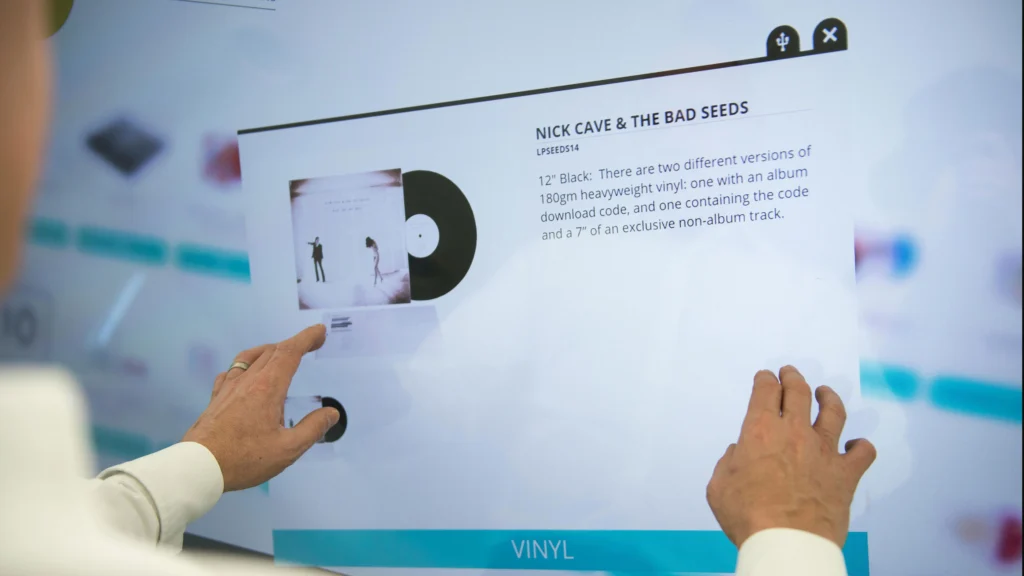
Calibration drift is a frequent issue with touchscreen boards. Teachers may notice that their touches do not correspond exactly to what appears on the screen, especially near the corners. Over time, this can lead to frustration during interactive lessons, particularly when precise gestures or annotations are required. Environmental factors, such as temperature changes or humidity, can exacerbate this drift, as can improper initial calibration after installation.
The solution involves periodic calibration checks using manufacturer-provided tools. Performing a touch test after firmware updates is also crucial to ensure consistent accuracy across the screen.
Touchscreen Lag or Delay
Some boards exhibit touch lag, where there is a noticeable delay between a user’s gesture and the screen’s response. This issue is particularly disruptive in hybrid classrooms, where smooth interaction is critical for both in-person and remote students. Lag often stems from computing modules being overloaded by high-resolution content or multiple applications running simultaneously. Network latency in cloud-based collaborative software can also worsen the problem.
Addressing lag may involve upgrading to a higher-performance OPS module, closing unnecessary background applications, or improving network quality. Teachers should be trained to recognize and report lag early to prevent it from affecting lessons.
Connectivity and Signal Problems
Connectivity issues are another common frustration. Boards may intermittently lose connection to HDMI inputs, USB devices, or wireless casting sources. Teachers might experience interruptions during lessons or find that certain devices are not detected consistently.
The underlying causes are often related to cable quality, port wear, or network interference. Ensuring that all cables are certified for high-speed data, that wireless networks are properly configured, and that firmware supports current standards are key steps in avoiding these disruptions.
Optional Table Suggestion: Connectivity Troubleshooting Overview
| Issue | Likely Cause | Recommended Action |
|---|---|---|
| HDMI dropouts | Loose cable or port | Test and replace as needed |
| Wireless casting interruptions | Network interference | Adjust access point location and channels |
| USB recognition failure | Driver or firmware mismatch | Update drivers and firmware |
Display Brightness and Color Degradation
Over months of heavy use, displays can gradually lose brightness or display colors inaccurately. This decline may not be immediately noticeable, but over time, it can reduce content readability and hinder visual learning. Factors include aging LED backlights, dust accumulation in ventilation ports, and minor firmware issues affecting display drivers.
Preventive measures include regular visual inspections, cleaning vents, and verifying firmware updates. Maintaining consistent brightness levels ensures that interactive content remains engaging and legible for all students.
Firmware and Software Glitches
Firmware bugs or outdated software can cause boards to freeze, behave unpredictably, or fail to launch certain applications. Teachers might notice intermittent unresponsiveness or inconsistent touch gestures.
The best approach is to maintain a schedule for firmware updates and to test these updates in a controlled classroom environment. Preparing a rollback plan is also recommended, so that lessons are not disrupted if an update introduces new issues.
Physical Damage and Wear
Daily classroom use exposes boards to potential physical issues. Screens may develop scratches, pens may wear down, and wall mounts can loosen. These problems are less technical but can still impact usability.
Implementing preventive practices, such as using protective covers for screens, handling pens carefully, and regularly inspecting mounts, helps extend the lifespan of the equipment.
Ghost Touch or Unintended Inputs
Ghost touches—unintended touches caused by electrical interference or environmental conditions—can disrupt lessons. Moisture, humidity, and aging touch sensors are common contributors.
Maintaining proper grounding, cleaning surfaces, and replacing worn touch layers when necessary can resolve these issues. Monitoring classrooms for ghost touch activity ensures that interactive sessions remain smooth and reliable.
Remaining Common Problems with Touchscreen Interactive Boards
Audio Integration Issues
Many interactive boards now integrate built-in microphones and speakers. Teachers often report low volume, echo, or uneven sound pickup. Audio issues may arise from misconfigured internal settings, firmware incompatibility, or physical obstructions around microphones.
Regular checks of audio input/output settings, testing with classroom acoustics in mind, and updating firmware can significantly reduce these problems. Ensuring proper teacher training for audio usage also minimizes frustration.
Classroom Audio Optimization: Practical Tips to Improve Sound Quality in Modern Classrooms
Network and Cloud Connectivity Failures
Interactive boards rely heavily on network stability for cloud applications, collaborative tools, and remote lesson broadcasting. Teachers may notice lag, failed connections, or sudden loss of cloud access.
The causes often involve overloaded networks, misconfigured VLANs, or outdated wireless drivers on the board. Preventive measures include monitoring bandwidth, prioritizing interactive board traffic, and ensuring network firmware is current.
Network Check Overview
| Symptom | Possible Cause | Recommended Action |
|---|---|---|
| Cloud app freezes | High network latency | Test latency, upgrade router/AP |
| Lost Wi-Fi connection | Weak signal or interference | Adjust AP placement |
| Unstable casting | Multiple devices competing | Implement QoS, segregate VLAN |
Peripheral Compatibility Problems
External devices like document cameras, USB drives, and interactive pens may not function properly if firmware or drivers are outdated. Teachers often encounter pen latency, inconsistent drawing, or recognition errors.
Maintaining compatibility requires verifying that external devices are supported by the board’s OS, updating drivers, and testing each peripheral in advance of lessons. A checklist for peripheral testing can prevent classroom interruptions.
Power and Environmental Issues
Sudden shutdowns, flickering displays, or intermittent touch failures can result from unstable power supply or overheating. Dust accumulation, blocked vents, or high ambient temperatures further exacerbate these problems.
Preventive strategies include:
- Installing surge protectors and UPS backups
- Regularly cleaning ventilation areas
- Monitoring classroom temperature and humidity
Proper environmental management increases equipment lifespan and reduces unexpected downtime.
Software Application Crashes
Interactive boards often run multiple applications simultaneously. Teachers may report app crashes, freezing, or failure to launch. This problem is frequently caused by insufficient system resources or conflicts between applications.
Solutions include closing unnecessary background apps, scheduling regular system reboots, and monitoring software usage patterns. Ensuring that teachers are aware of best practices for running multiple apps simultaneously helps reduce errors.
Security Vulnerabilities
Modern interactive boards with network connectivity are potential targets for security breaches. Weak passwords, outdated firmware, and unsecured network access can expose sensitive classroom data.
Routine security audits, enforcing strong authentication, and timely firmware updates mitigate these risks. Educating staff about secure board usage is also essential.
Recommended Maintenance and Best Practices
Maintaining interactive boards prevents most common problems from escalating. Recommended practices include:
- Monthly visual inspections and cleaning
- Touchscreen calibration checks every 1–2 months
- Firmware and driver updates quarterly
- Network connectivity and peripheral checks monthly
- Recording maintenance actions for accountability
Optional Table Suggestion: Maintenance Checklist Overview
| Task | Frequency | Notes |
|---|---|---|
| Clean touch surface | Monthly | Use microfiber cloth |
| Calibration check | 2 months | Use manufacturer tool |
| Firmware update | Quarterly | Test in one classroom first |
| Network test | Monthly | Ensure stable Wi-Fi and LAN |
| Peripheral check | Monthly | Verify all devices |
Advanced Troubleshooting Techniques
Diagnosing Touch Latency
Touch latency often frustrates teachers, especially in fast-paced lessons. Causes may include:
- Outdated firmware on the OPS or built-in processor
- Interference from other connected devices
- Software conflicts with teaching applications
Solution:
- Perform a full firmware update on both board and OPS module.
- Disconnect unnecessary peripherals to isolate interference.
- Use manufacturer diagnostic tools to measure touch response times.
Minimizing Display Flicker
Flickering screens can result from power fluctuations, loose connections, or internal display failures.
Advanced Checks Include:
- Inspecting power supply for voltage consistency
- Verifying all HDMI/OPS connections are secure
- Running internal diagnostics provided by the board manufacturer
A stable power setup with surge protection and UPS ensures long-term reliability.
Preventing Peripheral Conflicts
External peripherals like document cameras, USB drives, or stylus pens may conflict when multiple devices are connected.
Best Practices:
- Maintain a compatibility log for all supported devices
- Assign dedicated USB hubs to reduce resource contention
- Test new devices in a controlled environment before classroom deployment
Optional Table Suggestion: Peripheral Compatibility Overview
| Device | Common Issue | Recommended Action |
|---|---|---|
| USB Drive | Not recognized | Format FAT32/exFAT, test on board |
| Stylus Pen | Lag or misalignment | Recalibrate board, update drivers |
| Document Camera | Intermittent video | Verify HDMI connection, firmware update |
Firmware and Software Updates
Keeping firmware and software current resolves most unexpected errors:
- Enables improved touch accuracy
- Reduces app crashes
- Optimizes network integration
Maintenance Tip: Schedule updates quarterly and always test in a single classroom before mass deployment.
Best Practices for Long-Term Reliability
- Maintain a structured maintenance checklist
- Document all firmware updates and peripheral tests
- Train teachers on proper touch and audio usage
- Monitor classroom environmental factors: temperature, dust, and power stability
- Conduct quarterly network assessments
Long-Term Maintenance Schedule
| Task | Frequency | Notes |
|---|---|---|
| Touch calibration | Bi-monthly | Log results for tracking |
| Firmware update | Quarterly | Test in one classroom first |
| Peripheral compatibility check | Monthly | Verify supported devices |
| Network check | Quarterly | Monitor bandwidth, AP load |
| Power inspection | Monthly | Verify UPS, surge protection |
FAQ: Touchscreen Interactive Board Problems
Why does my touchscreen board lose accuracy over time?
Touch calibration can drift due to temperature changes, humidity, or heavy usage. Regular calibration ensures continued precision.
How can I reduce lag on my interactive board?
Close unnecessary applications, upgrade OPS or CPU modules if needed, and ensure network stability for cloud-dependent functions.
Why do pens or external devices fail intermittently?
Firmware, driver conflicts, or peripheral incompatibility often cause this. Maintain up-to-date drivers and verify compatibility.
How often should I perform preventive maintenance?
Monthly checks for cleaning and visual inspection, calibration every 1–2 months, and firmware updates quarterly are recommended.
Can environmental factors really damage the board?
Yes, heat, dust, and power fluctuations can shorten display lifespan and affect touch accuracy. Proper ventilation and surge protection are critical.
Why does my touchscreen pen lag during lessons?
Lag is often due to outdated firmware, interference from nearby devices, or heavy software load.
How do I fix intermittent network issues on interactive boards?
Check AP load, network segmentation, and update firmware. Prioritize interactive board traffic with QoS settings.
Can environmental factors damage my board?
Yes. Dust, high temperature, and power fluctuations reduce lifespan and affect touch accuracy.
How can I prevent software crashes on boards?
Close unnecessary apps, ensure firmware updates, and use only compatible software.
What are early warning signs of board failure?
· Touch delay or inaccuracy
· Flickering or dimming display
· Unexpected shutdowns
· Audio dropout or echo