Table of Contents
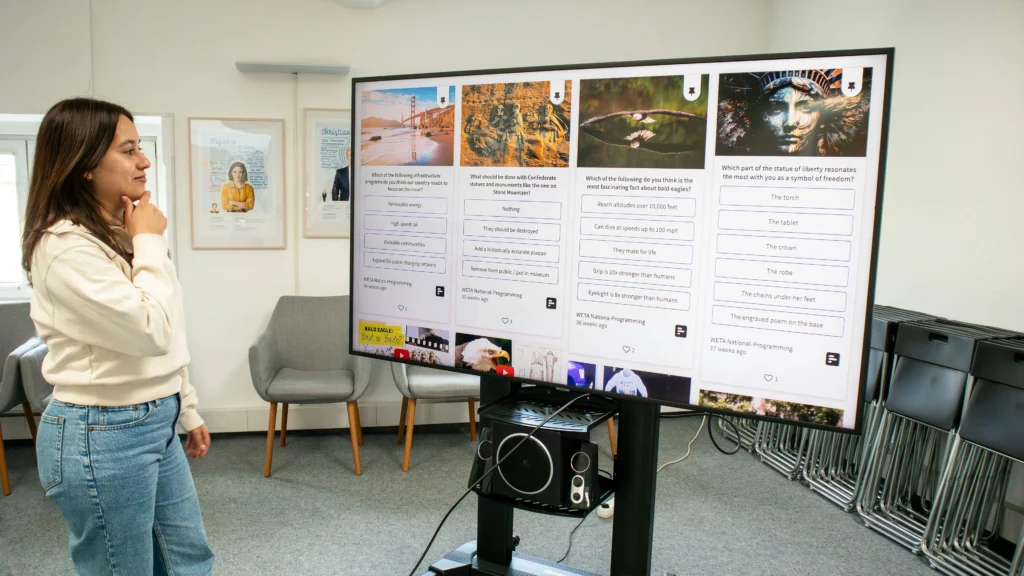
The modern educational landscape has shifted dramatically toward visual and tactile learning. Central to this evolution is the interactive flat panel, a tool that has largely replaced the traditional chalkboard and the aging bulb-based projector. However, one of the most frequent mistakes school administrators make during the procurement process is failing to properly evaluate the interactive display screen size. Choosing a screen that is too small leads to eye strain and disengagement for students in the back of the room, while a screen that is unnecessarily large for a small space can cause discomfort and wasted budget.

Selecting the right dimensions is not merely a matter of aesthetic preference. It is a decision rooted in ergonomics, spatial geometry, and pedagogical effectiveness. When the screen size aligns perfectly with the room’s dimensions, the technology becomes an invisible conduit for information rather than a barrier. This guide provides a deep dive into the technical and practical factors that define the ideal interactive display screen size for any learning environment.
The Critical Role of Visibility in Student Engagement
Student engagement is the primary metric of success for any classroom technology deployment. If a student cannot clearly read the text or see the details of a diagram from their seat, their cognitive load increases significantly. Instead of processing the lesson content, their brain is forced to spend energy simply deciphering blurry shapes. This leads to rapid fatigue and a subsequent drop in participation.
The relationship between interactive display screen size and legibility is governed by several factors, including resolution and the physical size of the content. In a smart classroom, content is often more complex than a simple video; it includes annotations, Excel spreadsheets, and intricate scientific models. Ensuring that every student, regardless of their seating position, has an equal opportunity to view this content is a fundamental requirement of classroom equity.
To better understand how this technology fits into the broader ecosystem of educational hardware, it is helpful to look at the Smart Classroom Components: Complete Guide to AV, Control & Infrastructure Systems. Understanding how the display interacts with other infrastructure elements helps in making a more informed decision regarding the physical footprint of the screen.
The Science of Viewing Distance: The 4/6/10 Rule
Determining the ideal interactive display screen size requires more than a “best guess” approach. Audio-visual professionals often use the 4/6/10 rule to calculate the necessary height and width of a display based on the furthest viewer in the room. This rule serves as a gold standard for ensuring that content is legible and accessible.
The rule states that for “Analytical Viewing,” where the viewer needs to see fine details like complex data or small text, the furthest seat should be no more than four times the vertical height of the screen. For “Basic Viewing,” such as watching a video or looking at a large image, the distance can extend to six times the height. Finally, for “Passive Viewing,” the distance can reach ten times the height, though this is rarely recommended for active teaching environments.
When applying this to a standard classroom, we must prioritize the “Analytical Viewing” standard. If your classroom is 30 feet deep, you need a display tall enough so that the student at the 30-foot mark can still read 12-point font. Often, this calculation leads schools toward 75-inch or 86-inch panels, as these sizes offer the vertical real estate necessary to meet the 4/6/10 requirements in medium-sized rooms.
Navigating Standard Industry Sizes: 65, 75, and 86 Inches
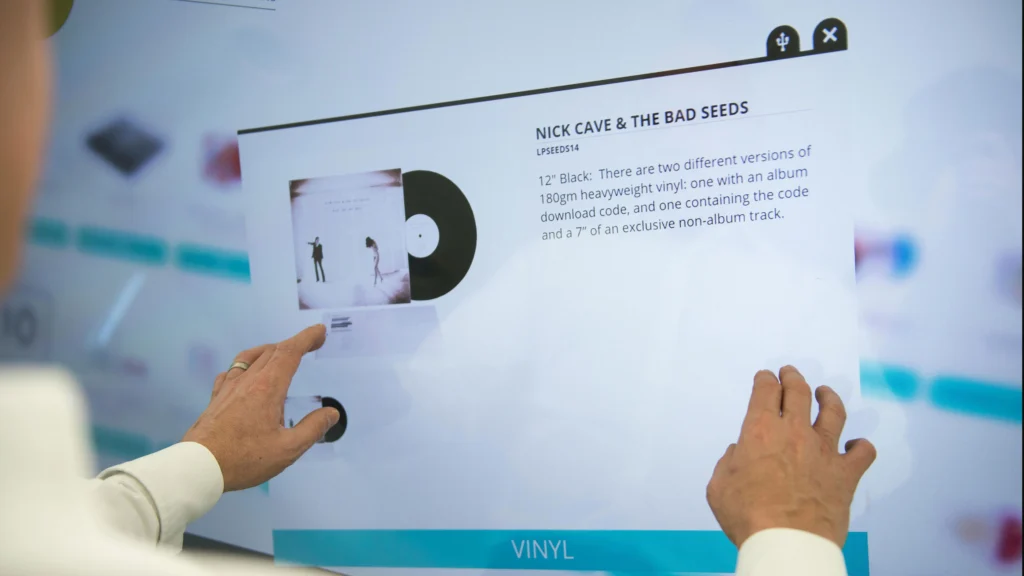
The interactive display market has largely standardized around three primary sizes: 65 inches, 75 inches, and 86 inches. While 55-inch and 98-inch models exist, they represent the niche extremes of the spectrum. Understanding the specific use cases for these standard sizes is the first step in a successful rollout.
The 65-Inch Display: Small Groups and Huddle Spaces
A 65-inch interactive display is the baseline for professional interactive technology. While it may seem large in a living room, it can feel surprisingly small in a standard classroom. This size is most effective in small seminar rooms, breakout areas, or “huddle spaces” designed for 5 to 10 students. In these environments, the viewing distance is limited, and the interactive nature of the screen is prioritized over long-range visibility.
The 75-Inch Display: The Standard Classroom Workhorse
The 75-inch panel is currently the most popular choice for the average K-12 classroom. It strikes a perfect balance between visibility and cost-effectiveness. A 75-inch screen provides enough surface area for a teacher to use “split-screen” modes effectively, showing a video on one side while taking notes on the other. It comfortably serves rooms of up to 25 or 30 students, provided the room layout is optimized.
The 86-Inch Display: Large Classrooms and Lecture Halls
For larger classrooms or rooms with a deep rectangular layout, the 86-inch display is the gold standard. The jump from 75 to 86 inches provides a significant increase in total screen area—roughly 30% more—which makes a massive difference for students seated in the back rows. It is also the ideal size for rooms that frequently utilize hybrid learning, as it allows enough space to display a gallery view of remote students alongside the instructional content.
| Screen Size | Recommended Max Viewing Distance | Best Use Case |
| 65-Inch | 12 – 15 feet | Small meeting rooms, huddle spaces |
| 75-Inch | 18 – 22 feet | Standard K-12 classrooms |
| 86-Inch | 25 – 30 feet | Large classrooms, science labs |
| 98-Inch | 35+ feet | Lecture halls, multi-purpose rooms |
Resolution and Its Relationship with Size
A common misconception is that a larger interactive display screen size automatically means a clearer image. In reality, size and resolution must work in tandem. Most modern interactive panels are 4K (Ultra High Definition). On a 65-inch screen, 4K resolution provides incredibly high pixel density, making text look extremely sharp even from a few inches away.
As the screen size increases to 86 or 98 inches, maintaining 4K resolution becomes even more critical. If you were to use a lower resolution, such as 1080p, on an 86-inch screen, the pixels would become visible to students in the front row, leading to a “screen-door effect” that is distracting and unprofessional. Therefore, when selecting a larger display, ensuring the hardware supports a high refresh rate and true 4K output is essential for maintaining image integrity across the larger surface area.
Choosing the right size is also a preventative measure against common technical frustrations. Many schools find that their issues aren’t with the software, but with how the hardware fits the space. For more on this, you can explore Touchscreen Interactive Boards: Common Problems to see how physical dimensions and installation choices impact long-term performance.
Room Dynamics: Beyond Square Footage
When determining the ideal interactive display screen size, many administrators focus solely on the square footage of the room. While total area is important, the room’s geometry—its length, width, and ceiling height—plays an even more significant role in determining what students can actually see. A long, narrow classroom requires a much larger display than a wide, shallow classroom of the same square footage because the furthest student is significantly further from the screen.
Lighting is another environmental factor that dictates how large a screen needs to feel. In rooms with large windows and significant natural light, glare can reduce the perceived contrast of the screen. While most modern interactive panels feature anti-glare tempered glass, a larger screen size can help overcome visibility issues caused by high ambient light by allowing for larger, bolder content that is easier to track even when the environment isn’t perfectly dark.
If you are currently evaluating your room layout and wondering how the display fits into a larger infrastructure plan, checking a Smart Classroom Setup Checklist can help ensure that your chosen screen size doesn’t conflict with other essential classroom elements like whiteboards or storage cabinets.
Installation Height and Ergonomics for Students
The interactive display screen size directly impacts where the unit should be mounted on the wall. For a screen to be truly “interactive,” students must be able to reach the top of the touch-sensitive area. An 86-inch display is nearly 43 inches tall; if it is mounted too high to accommodate the viewing needs of students in the back, younger students in the front may be unable to reach the upper third of the interface.
This creates a tension between “viewability” and “reachability.” In primary schools, it is often better to opt for a slightly smaller 75-inch screen mounted at a lower height, or to invest in a height-adjustable motorized mount. These mounts allow the teacher to raise the screen when lecturing to the whole class and lower it when it is time for a student to come to the front for an interactive exercise.
Failure to account for these physical constraints is a frequent error. To avoid similar pitfalls, it is useful to review Common Installation Errors with Interactive Displays, which covers mounting heights and other physical deployment challenges in greater detail.
The 86-Inch Panel vs. Projector Systems
In larger environments where an 86-inch screen might still feel small, some schools consider returning to projection systems. However, the trade-off is significant. While a projector can easily create a 120-inch image, it lacks the brightness, touch accuracy, and maintenance-free longevity of an interactive flat panel. The decision regarding interactive display screen size often comes down to a choice between the massive, but dimmer, image of a projector and the smaller, but much more vibrant and functional, image of a LED-backlit panel.
Modern 86-inch and 98-inch panels have largely bridged this gap. They offer 4K clarity that projectors struggle to match without significant investment in high-end laser units. Furthermore, the interactivity on a flat panel is baked into the hardware, providing a much smoother writing experience than the calibrated pens used with interactive projectors. For a deeper technical comparison on this front, see Interactive Display vs Projector: 5 Key Differences Every Classroom Should Know.
The Cost-Benefit Analysis of Larger Screens
Budget is inevitably a factor when selecting the interactive display screen size. Generally, the price of these units does not scale linearly. The jump from a 65-inch to a 75-inch model is usually modest, but the move to an 86-inch or 98-inch panel often involves a significant price hike. This is due to the increased complexity of manufacturing large glass substrates and the reinforced shipping requirements for heavier units.
However, the “cost per year” of a display that is too small can be higher than it seems. If a screen is too small, teachers will often stop using the interactive features and revert to traditional methods because the students can’t see what is happening. This results in a “dead” asset. Investing in an 86-inch screen for a large room ensures that the technology is actually utilized, providing a better return on investment over its 5-to-7-year lifespan.
When planning your budget, it is also important to consider the internal computing power of these large units. Larger screens often require more robust processing to handle 4K touch inputs smoothly. You can learn more about the internal hardware options in our guide on OPS vs Built-in Android: What Powers Interactive Displays.
Aspect Ratio and Content Scaling
While nearly all interactive displays today use a 16:9 aspect ratio, the way software scales on different screen sizes varies. On a 65-inch screen, Windows or ChromeOS might feel “cramped” if the scaling is set to 100%. On an 86-inch screen, you have more physical real estate to keep multiple windows open side-by-side.
This “digital real estate” is a major productivity booster for teachers. Being able to have a web browser, a digital whiteboard, and a student’s screen-share open simultaneously requires a large enough interactive display screen size to keep each window legible. If your teaching style relies heavily on multitasking, the 86-inch model is almost always the superior choice, regardless of the room size.
Portability and Mobile Stands
Sometimes, the “room size” isn’t fixed. In flexible learning environments, interactive displays are often mounted on heavy-duty mobile carts. In these scenarios, the interactive display screen size must be balanced with the need for mobility. An 86-inch display on a cart is quite top-heavy and can be difficult to move through standard-sized doorways.
For schools that need to share equipment between rooms, the 75-inch model is frequently the “sweet spot.” It is large enough for most classrooms but remains manageable enough to be wheeled from a science lab to a history classroom without requiring a specialized moving crew. If your school is looking to maximize its hardware investment through sharing, portability should be as much a part of the size discussion as viewing distance.
| Consideration | 75-Inch Panel | 86-Inch Panel |
| Mobility | Fits through most doors easily | Can be difficult/heavy to move |
| Multi-window use | Good for 2 windows | Excellent for 3+ windows |
| Reachability | Ideal for younger students | May require height adjustment |
| Visibility | Up to 22 feet | Up to 30 feet |
Maintenance and Longevity: Does Size Matter?
When discussing interactive display screen size, few administrators consider how physical dimensions impact the long-term health of the hardware. Larger panels, specifically those in the 86-inch and 98-inch range, generate more heat than their smaller counterparts. Because they contain more LEDs for backlighting and more surface area for touch sensors, thermal management becomes a critical factor. High-quality large-format displays are designed with robust heat dissipation systems, but they still require proper ventilation.
Furthermore, the physical vulnerability of the glass increases with size. An 86-inch screen has a much larger “strike zone” for accidental impacts. Most educational-grade displays use 4mm or 7mm toughened glass, but the sheer tension across a larger surface area means that a hit to the edge can be more damaging than on a 65-inch unit. Regular cleaning also becomes more of a chore; ensuring the infrared or capacitive touch sensors around the bezel are free of dust is essential for maintaining accuracy. For more tips on keeping your hardware in top shape, check out our AV Maintenance Checklist for Smart Classrooms.
Future-Proofing Your Technology Investment
Choosing the right interactive display screen size is an exercise in future-proofing. Educational software is becoming more visually complex, often incorporating high-resolution 3D models, virtual reality feeds, and data-heavy simulations. A screen that feels “adequate” today may feel restrictive in three years as curriculum standards evolve toward more collaborative, multi-user software interfaces.
Large-format displays (86-inch+) are better suited for the “multi-touch” future. These screens allow three or four students to work at the board simultaneously without bumping into one another. If your school’s pedagogical goal is to move away from teacher-led lectures and toward student-led collaboration, opting for a larger screen size now will prevent the need for an expensive hardware refresh later.
The Final Selection Checklist
Before you sign off on a purchase order, go through this final checklist to ensure your chosen interactive display screen size truly fits your environment:
- Measure the Furthest Seat: Use the 4/6/10 rule. Is the vertical height of the screen at least 1/4th the distance to the last row?
- Check Ceiling Height: Will an 86-inch screen fit on the wall without being so low that students kick it, or so high that the teacher can’t reach the top?
- Evaluate Doorway Clearance: If the unit is on a mobile stand, will it physically fit through the classroom and elevator doors?
- Assess Wall Load-Bearing: Does the wall have the necessary reinforcement? An 86-inch panel can weigh over 150 lbs (approx. 70 kg), requiring specialized mounting.
- Verify Lighting Conditions: In high-glare rooms, a larger, brighter screen is often necessary to maintain legibility.
Conclusion: Making the Right Choice

Selecting the perfect interactive display screen size is a balancing act between budget, room physics, and educational goals. While the 75-inch model remains the most versatile “all-rounder” for the average classroom, the move toward 86-inch displays is rapidly becoming the standard for modern, future-ready institutions. By prioritizing the visual needs of the student in the very back of the room, you ensure that your technology investment actually facilitates learning rather than creating a new barrier to it.
Technology should never be the center of the lesson—the content should be. However, without the right screen size, the content remains hidden. By following the ergonomic and technical guidelines outlined in this guide, you can create a viewing experience that is inclusive, engaging, and built to last.
Frequently Asked Questions (FAQ)
1. Is an 86-inch screen too big for a small classroom?
While it may seem overwhelming at first, an 86-inch screen is rarely “too big” unless it physically doesn’t fit on the wall or blocks a doorway. The higher resolution of modern 4K panels means students can sit quite close without seeing individual pixels. The only real downside is the higher cost.
2. What is the most common interactive display screen size for K-12?
The 75-inch display is currently the industry standard for K-12 classrooms. It provides a significant upgrade over 65-inch models while remaining more affordable and easier to install than 86-inch or 98-inch units.
3. Do I need a different size for hybrid or remote learning?
Yes. Hybrid learning typically requires “Gallery View,” where you see remote students on the screen alongside your teaching materials. For this, an 86-inch screen is highly recommended, as it provides enough space for both the lesson content and the video feeds of remote participants.
4. How high should I mount my interactive display?
For primary school students (ages 5-11), the bottom of the screen should usually be about 28-32 inches from the floor. For secondary schools and adult learners, 36-40 inches is standard. Always ensure the screen size doesn’t push the top of the display beyond the reach of the average user.
5. Can a projector replace a large interactive display to save money?
A projector can provide a larger image for less money, but it lacks the brightness, touch sensitivity, and low maintenance of an interactive flat panel. In the long run, the cost of replacement bulbs and the lack of clarity often make projectors a more frustrated choice for interactive teaching. For more details, see Short-Throw vs Standard Projector: Installation Tips.